
Frictionless sending describes the process of delivering SMS notifications directly to recipients’ mobile phones for immediate and easy access. This article will guide you through how your organisation can create a training course that sends SMS training notifications to the recipients’ mobile numbers.
If you are unable to see the option to send SMS notifications, it is likely because frictionless training is not yet enabled for your account. Please speak to your account manager to have this feature activated.
- Prerequisites
- Create a new Training Course
- Step 1 - Description
- Step 2 - Delegates
- Step 3 - Scheduling Details
- Step 4 - Course Tracking
- Step 5 - Course Content
- Step 6 - Notifications
- Step 7 - Reporting
Prerequisites
First things first, be aware that for an SMS to deliver, the recipient must have an entry within the "Mobile Phone Number" field in their Recipient Information. This will be automatically populated by Google Instant sync and Azure Active Integration if you use this sync method.
Recipient information included in a CSV file will also be uploaded to the platform with all included information, including a mobile number and manager information.
Before sending your first SMS notification, we recommend picking a template to use or creating a new template. If you don't know how to set up a new SMS notification template, you can follow our step-by-step guide by clicking here.
Create a new Training Course
To create a new Training Course, follow the steps below.
- Under "Training" in the left-hand column, select "Courses".
- Click "Create new Training Course".
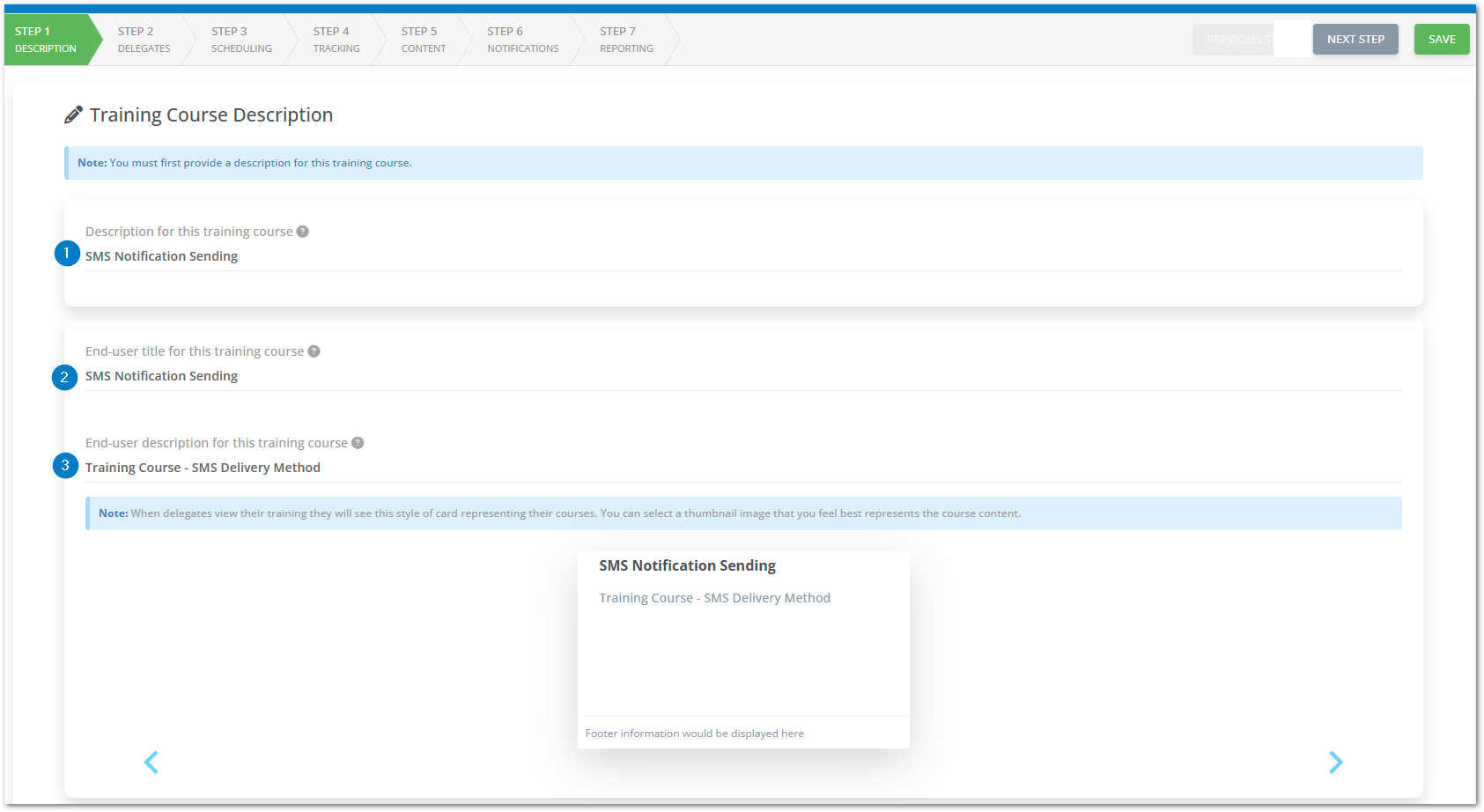
Step 1 - Description
-
Description for this Training Course
- Enter a description for your Training Course.
-
End-user title for this Training Course
- Enter an end-user title for your Training Course.
-
End-user description for this Training Course
- Enter an end-user description for your Training Course.
- Click "Next Step" to continue making your Training Course.
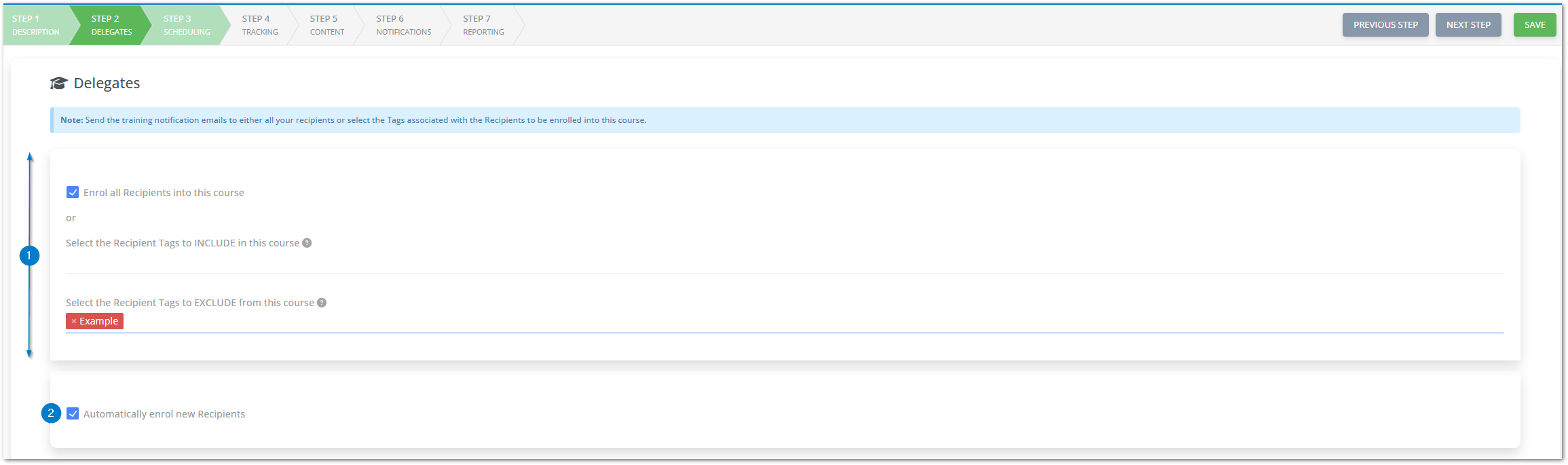
Step 2 - Delegates
-
Decide which recipients to enroll into your Training Course.
- Tick the box "Send to all recipients" to send this Training Course to all recipients in the address book.
- Select a tag that specifies which users to include or exclude in this Training Course.
Note: You'll need to ensure that a mobile number is specified within the recipient details for all recipients included in the Training Course.
-
Automatically enroll new recipients
- Having the "Automatically enroll new recipients" box ticked will enroll all future recipients with the tag that you selected/all new recipients added to the platform into your Training Course.
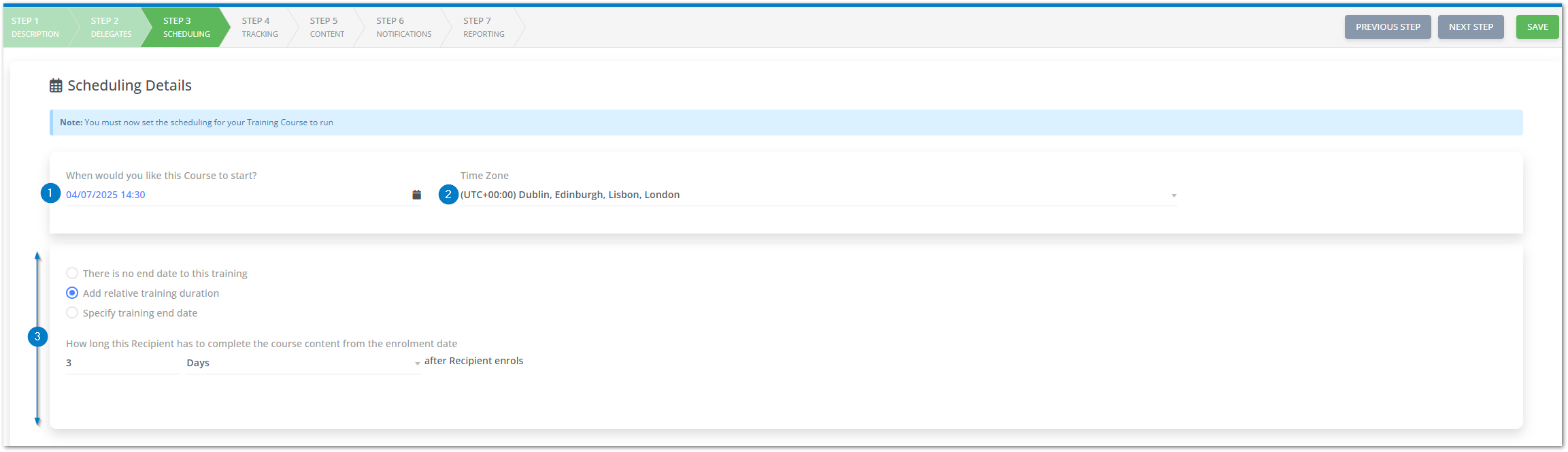
Step 3 - Scheduling Details
-
When would you like this Course to start?
- Select the time and date that you would like your Training Course to start.
-
Time Zone
- Select your time zone.
-
Training course end date
- Select the date and time that you would like your Training Course to end. If you do not want your training course to end, select "There is no end date to this Training".
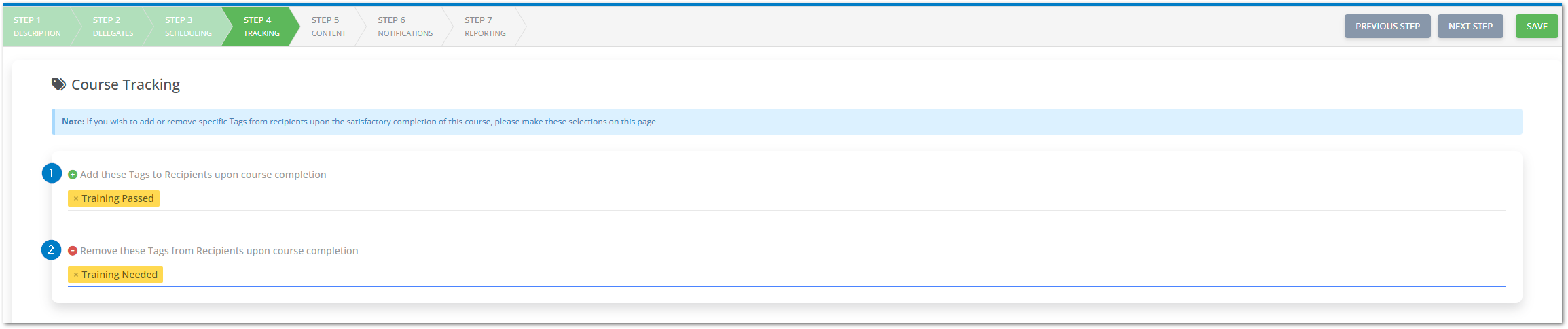
Step 4 - Course Tracking
-
Add these tags to recipients upon Course completion
- Select the tags that you would like added to your recipients when they complete the course.
-
Remove these tags from recipients upon Course completion
- Select the tags which you would like to be removed from your recipients when they complete the course.
Step 5 - Course Content
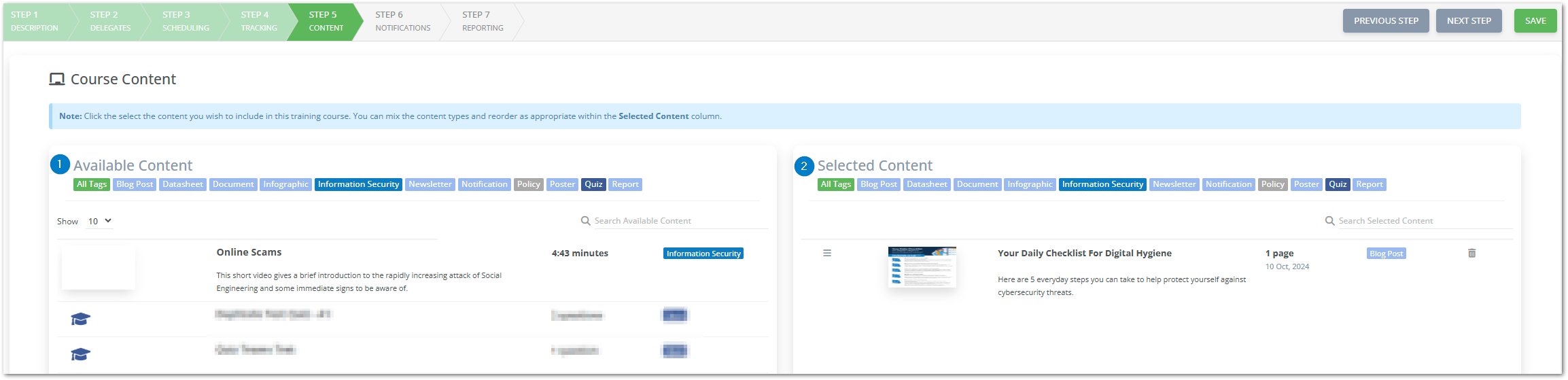
-
Available Content
- All content that you are able to use in your Training Course is presented here.
-
Selected Content
- All content that you have selected to use in your Training Course is presented here.
Step 6 - Notifications
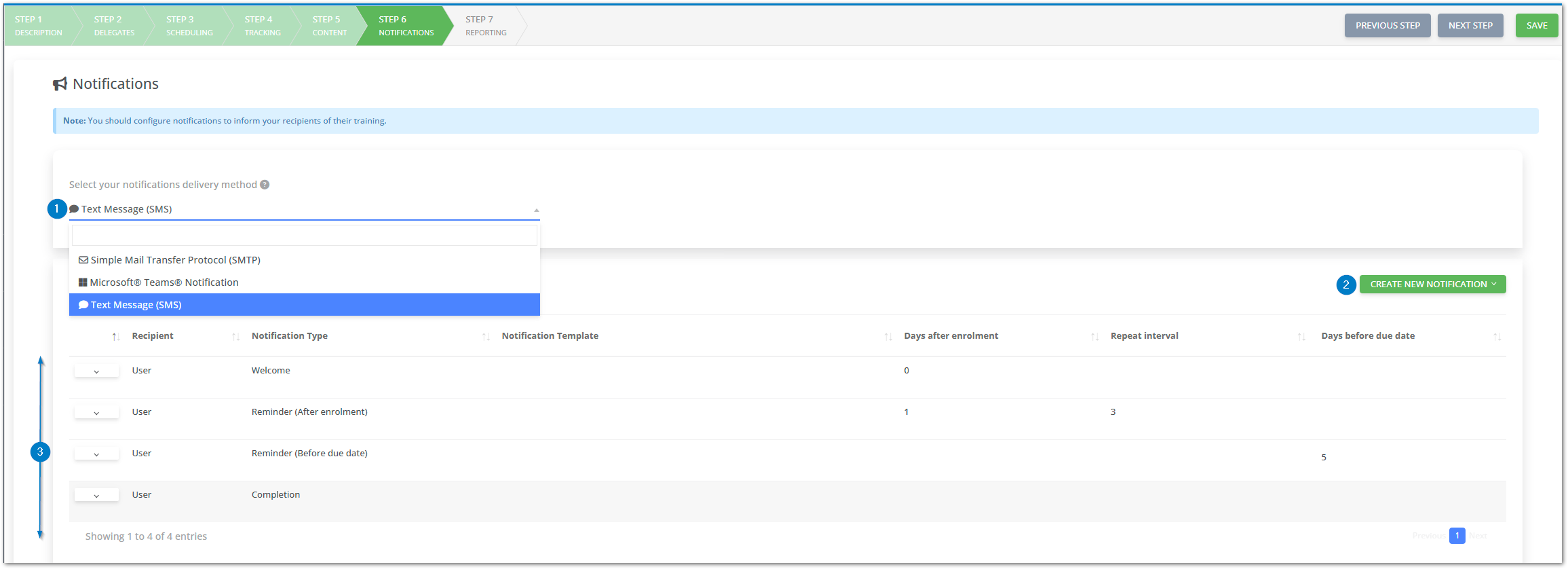
Note: This is where you will be selecting your SMS notifications.
-
Select your notifications delivery method
- Select this, and change the delivery method to SMS.
-
Create new notification
- Select this button to create a new welcome, reminder after enrolment, reminder before due date and/or completion notification.
-
Notification table
- This is where you can view all of the notifications that you have added to your Training Course.
Step 7 - Reporting
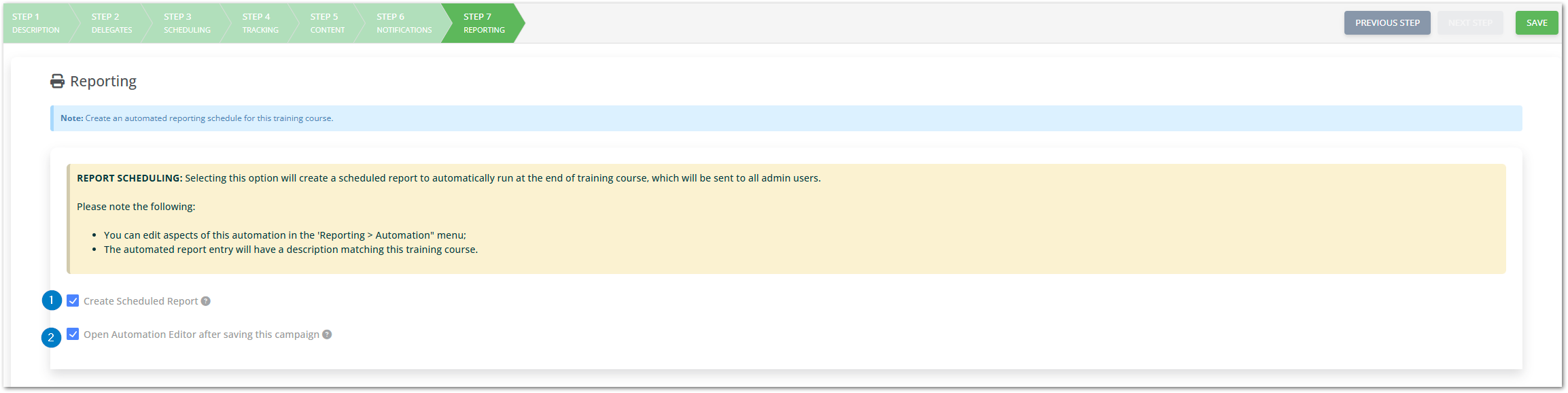
-
Create Scheduled Report
- By selecting this, you will be sent a scheduled report of the Training Course.
-
Open Automation Editor after saving this campaign
- By selecting this, you will open the Automation Editor after saving the Training Course.
Please let us know if you require any further assistance, you can contact our support team by clicking here. Or by sending an email to support@phishingtackle.com